 PatTask


Notifications
PatTask can notify you as well. Tasks, work blocks and calendar events can each be turned on or off. Tapping a notification opens that place. Apple Reminders' own notifications are left alone.
Slide-to-plan task manager
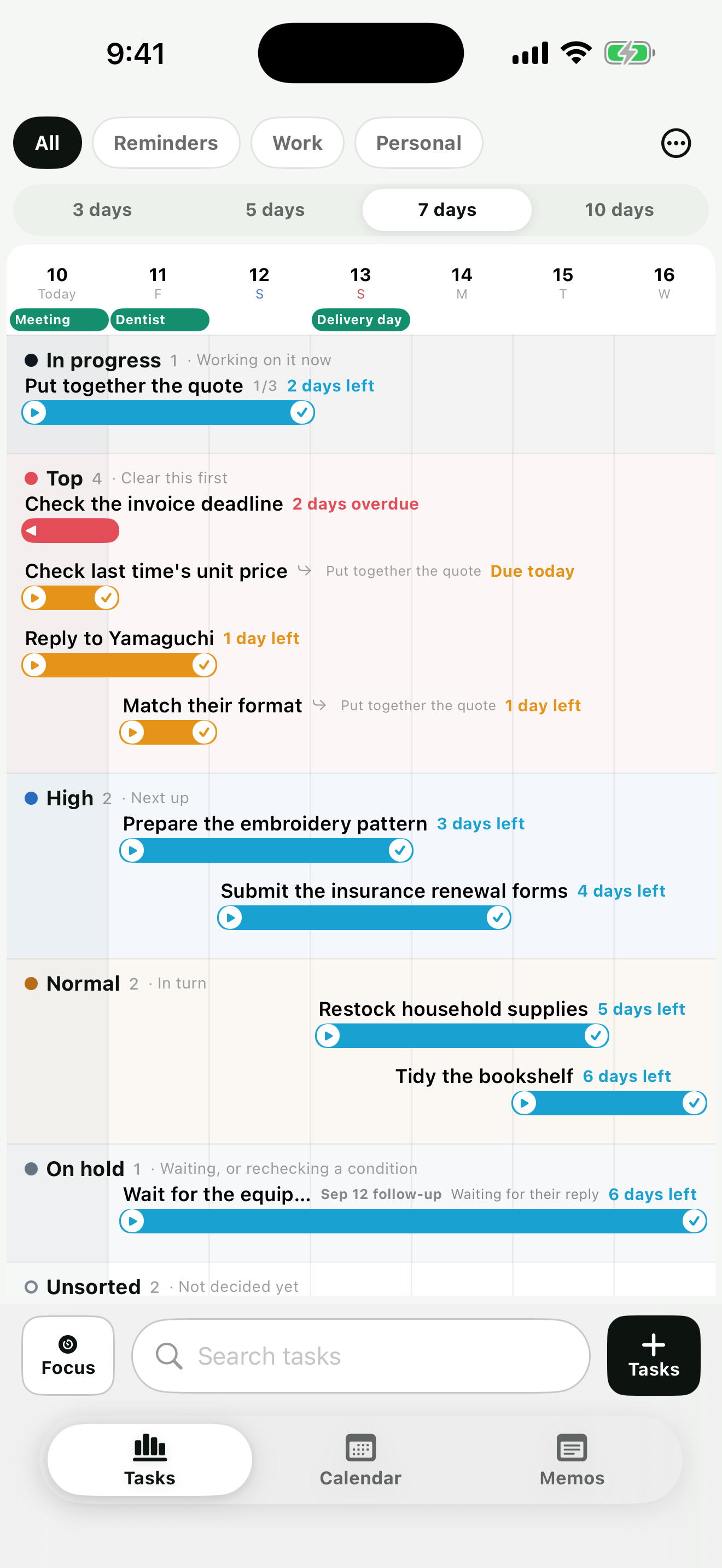
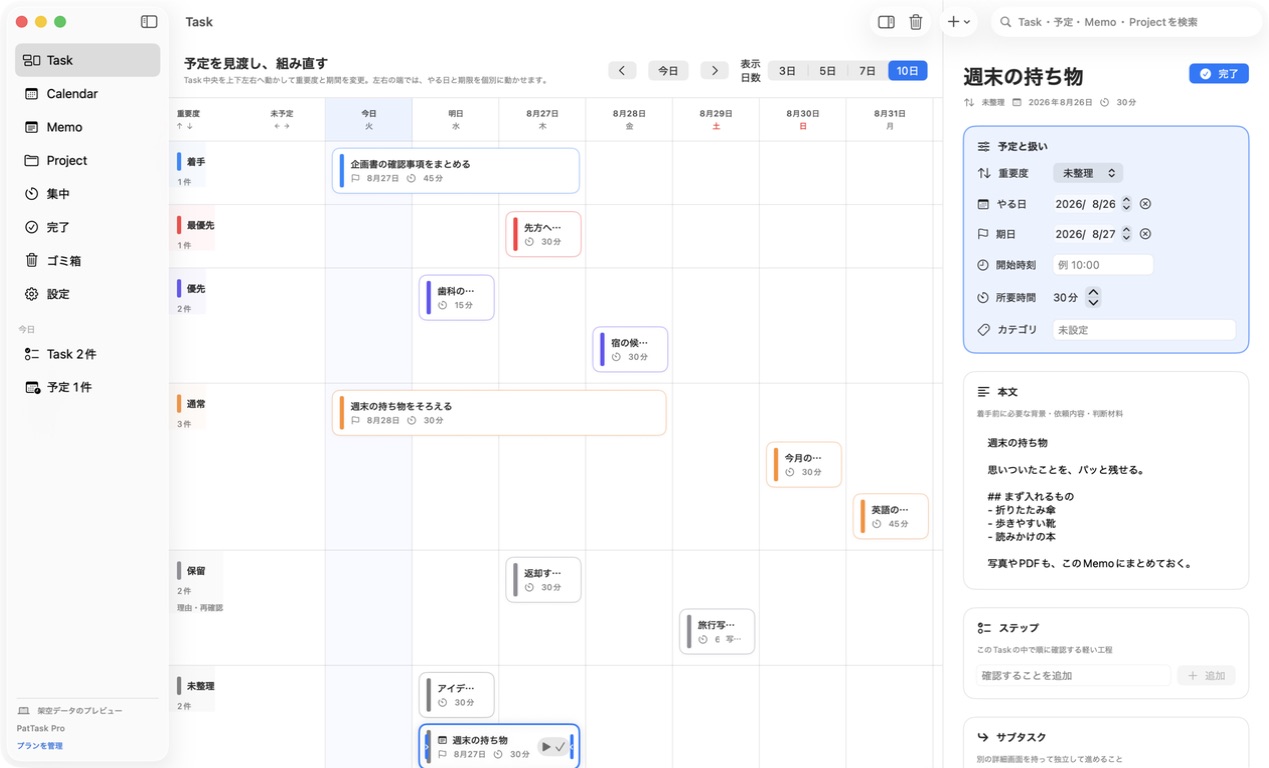
PatTask lays your tasks out on one board so you can decide when to do them. The screen above moves at the real size.
The days remaining are always in view. Switch between 3, 5, 7 and 10 days. A task with no dates sits in Unsorted as a dashed bar.
The lanes, from the top: In progress, Top, High, Normal, On hold, Unsorted. A task you decide matters goes higher.
Drag a bar sideways and its start and due dates move. Hold the middle to move the whole span; hold an end to move just that date. While you drag, the date you'll land on appears above the bar.
You reschedule with your finger, while every other task's dates are on the same screen.
In progress is the top lane. The one thing you're about to pick up goes here.
Focus
PatTask's focus timer is not a Pomodoro timer.
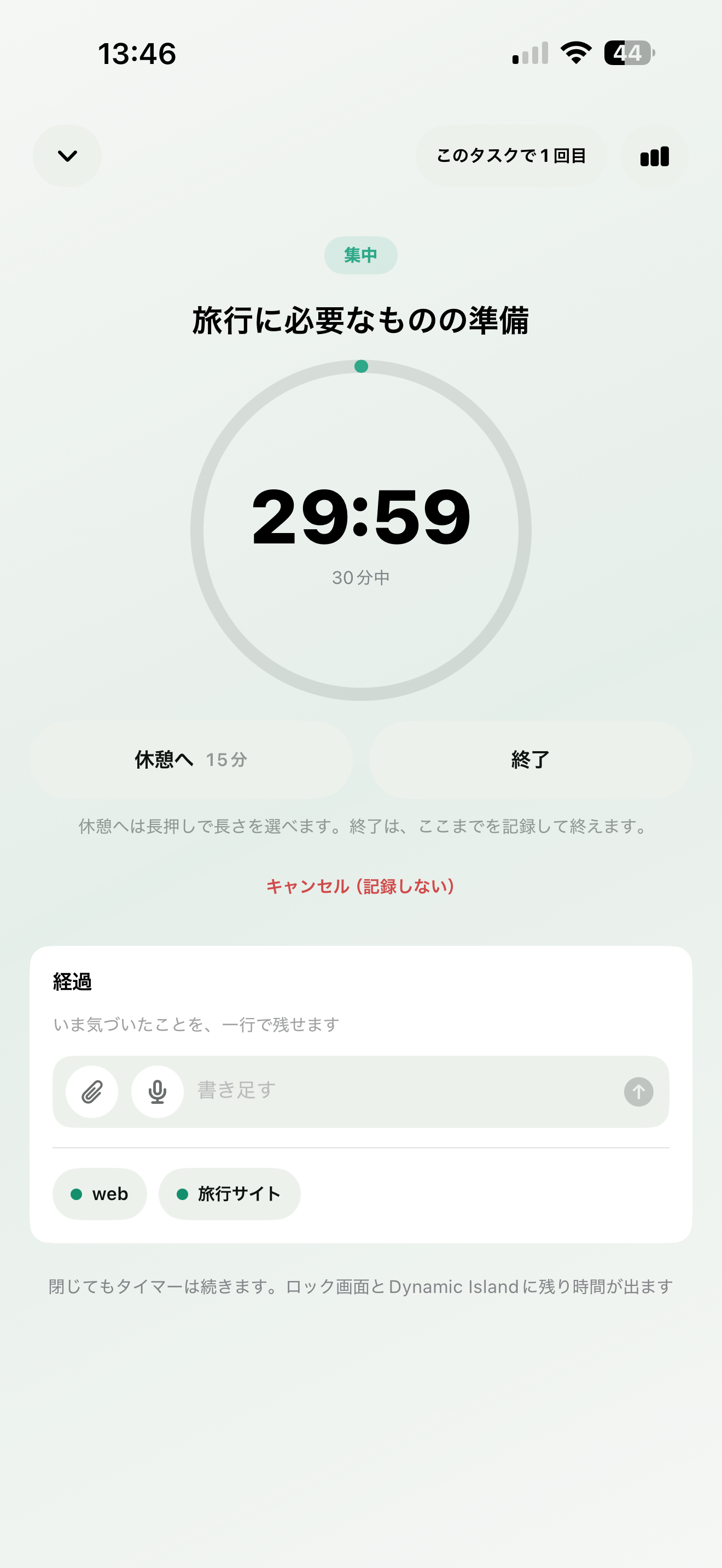
You decide up front how long to spend on this task. Breaks and interruptions are fine — what matters is getting through the time you set.
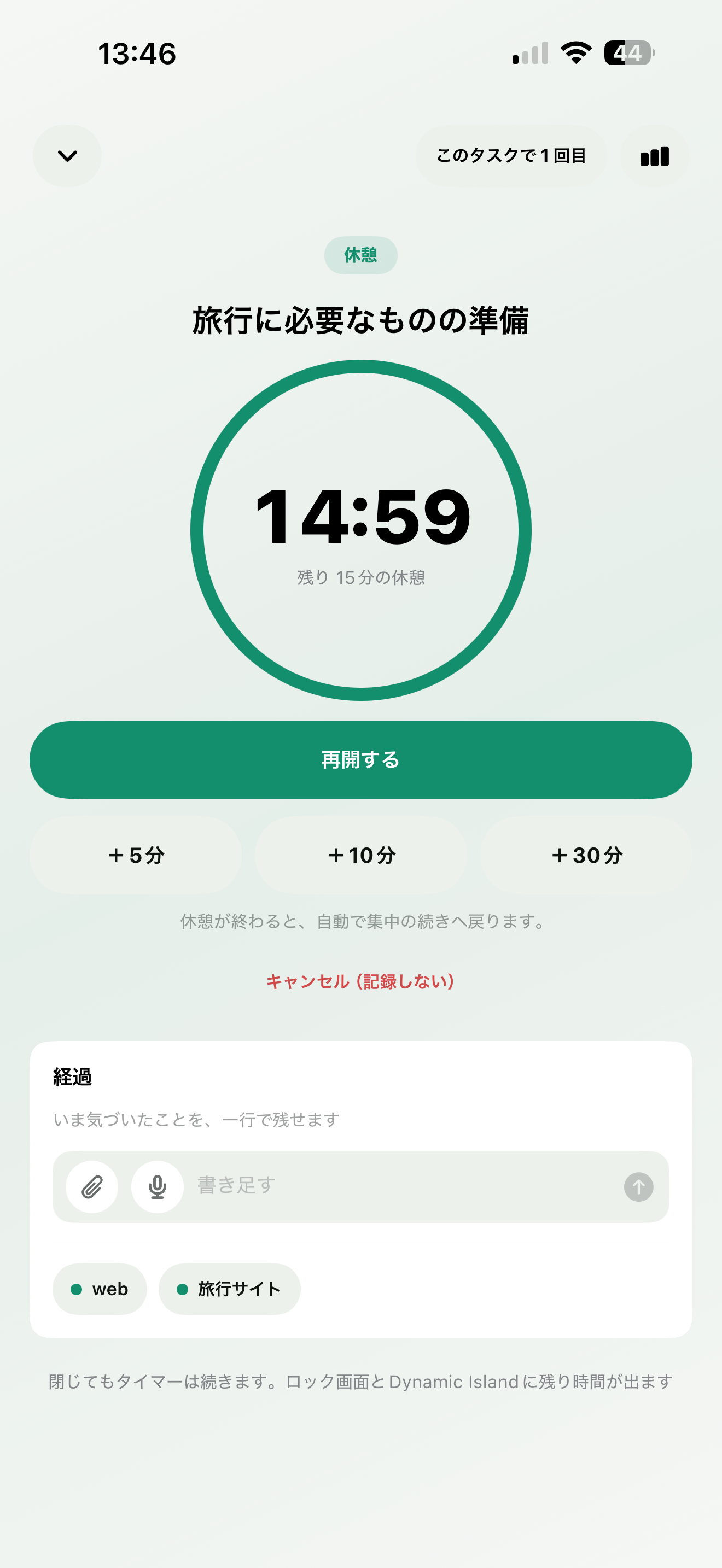
When you're tired, or something else comes up, tap “Take a break”. The focus pauses and the break begins (ten minutes; press and hold to choose the length, and you can add more later). The break is timed too, and a chime tells you it's over — even on silent.
Interrupt a thirty-minute session at twelve minutes and take ten off, and afterwards it resumes at the remaining eighteen. Twelve and eighteen add up to thirty. Break or no break, it's recorded as one thirty-minute session.
While you're focusing, everything that task needs is on screen: subtasks, updates, related events, the destinations you open often. You don't have to break the session to write down one thing you remembered.
At the top: “Session 3 on this task · last time 25 min”. How many times you've come back to the same piece of work stays right there.
When you've finished, tap “Complete task”. Back on the board, what to do next is in view again.
Adding
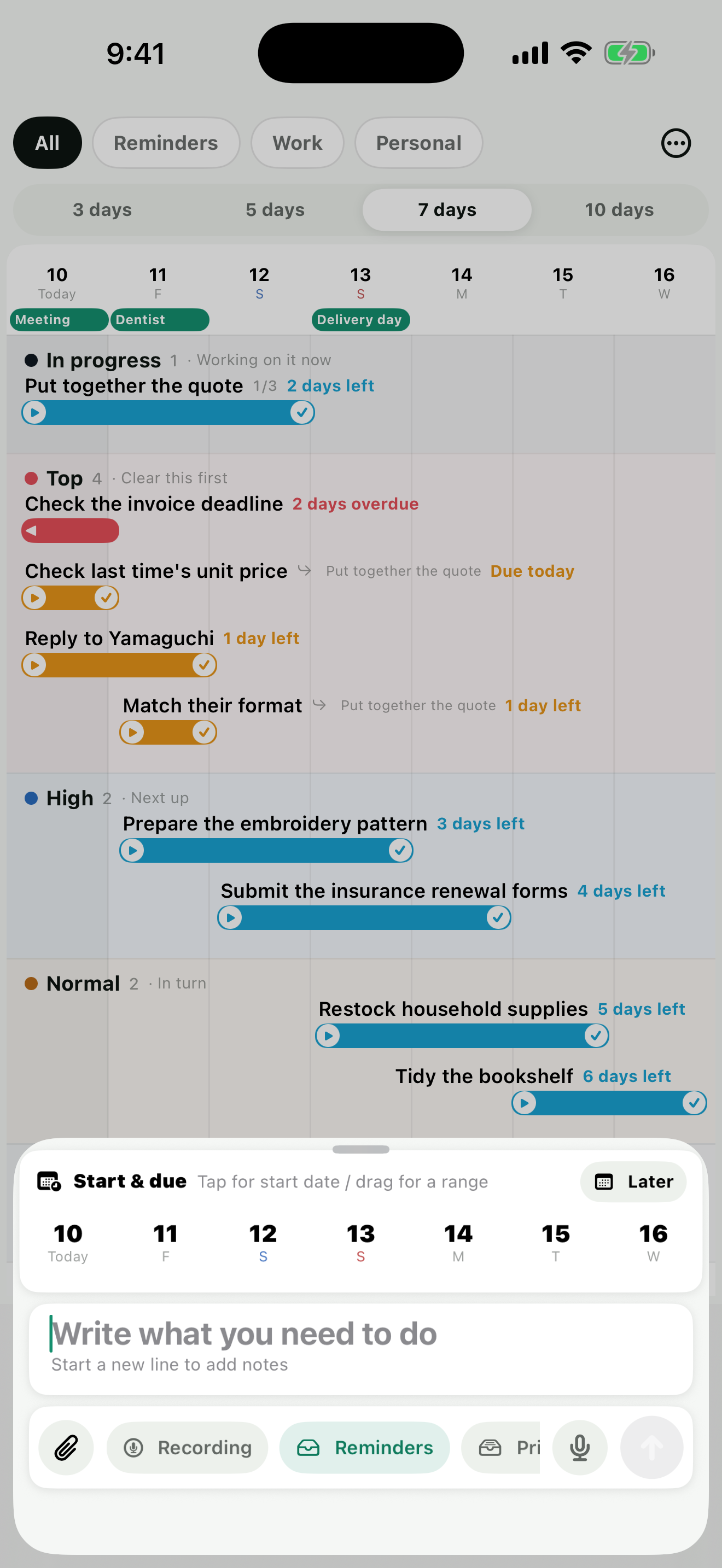
The first line is the task name; anything after a line break becomes notes. Tap a date once to set the start date, tap another to set the due date. Priority, list, notification, repeat, location, URL and attachments are all right beside the field. The microphone to the left of the arrow listens for as long as you hold it. “Record” keeps your voice as it was, and the transcript is attached to that recording.
Subtasks, updates, attachments
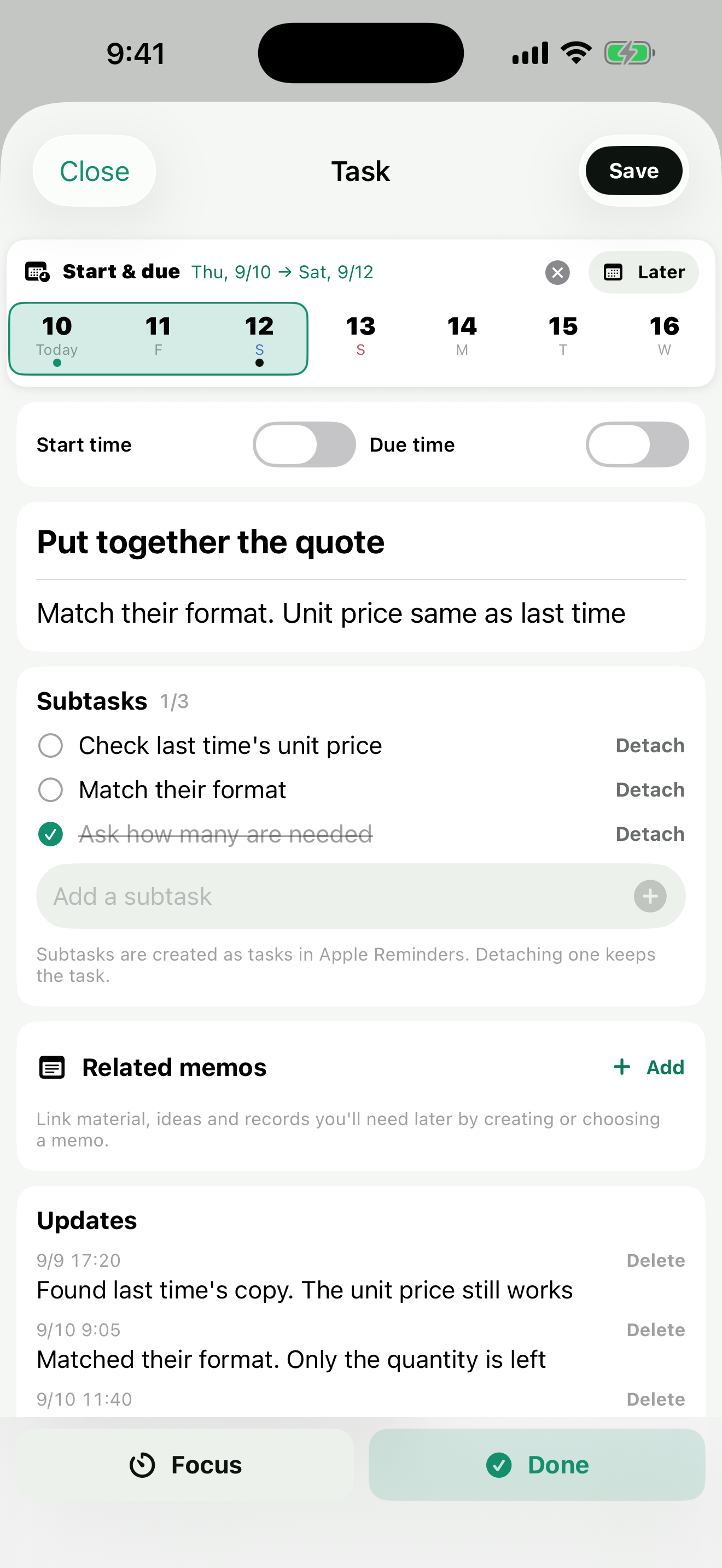
A large task can be split into subtasks. The parent row shows “1/3” done, and on the board the subtasks line up beneath it. Each one is created as a real task in Apple Reminders, in the same list as its parent.
Note: these don't map onto Apple Reminders' own subtasks, so they appear there as ordinary tasks.
In a task's details you can add dated updates, one line at a time — a record of a call you made, something you noticed afterwards. Photos and files can go with them.
The update field has a microphone too: hold it and the text grows as you speak. To keep the voice itself, choose “Record audio” from the clip. Up to five minutes each.
Attachments — photos, camera, files, recordings — are up to 40 MB each. Tap one and it opens full screen; pinch to zoom, and PDFs read as they are. Everything is saved on your device first, then synced to PatTask's own iCloud under the same Apple Account, so it opens on your other devices too.
Calendar
You decide to get something done today — and the day turns out to be full of meetings already. That's what happens when tasks and events live in separate apps.
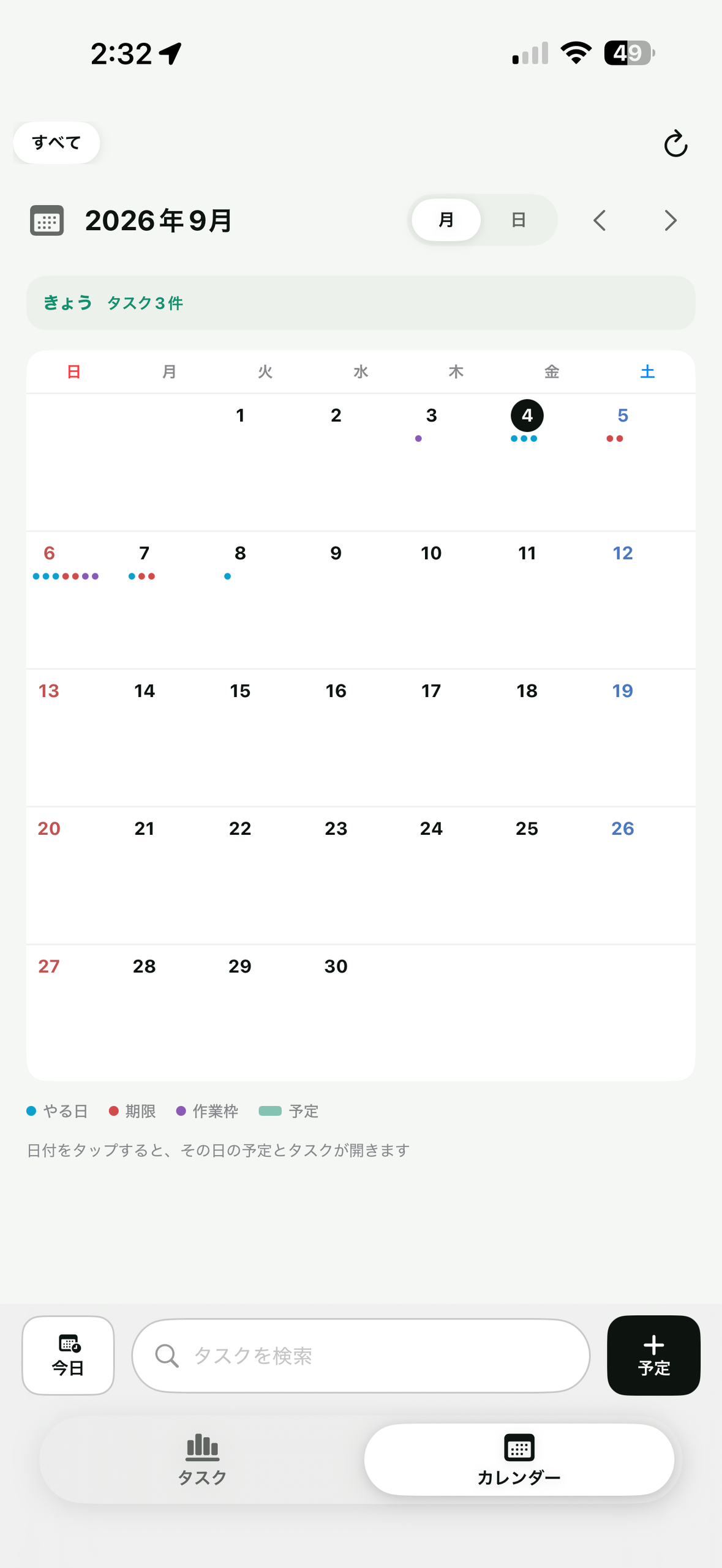
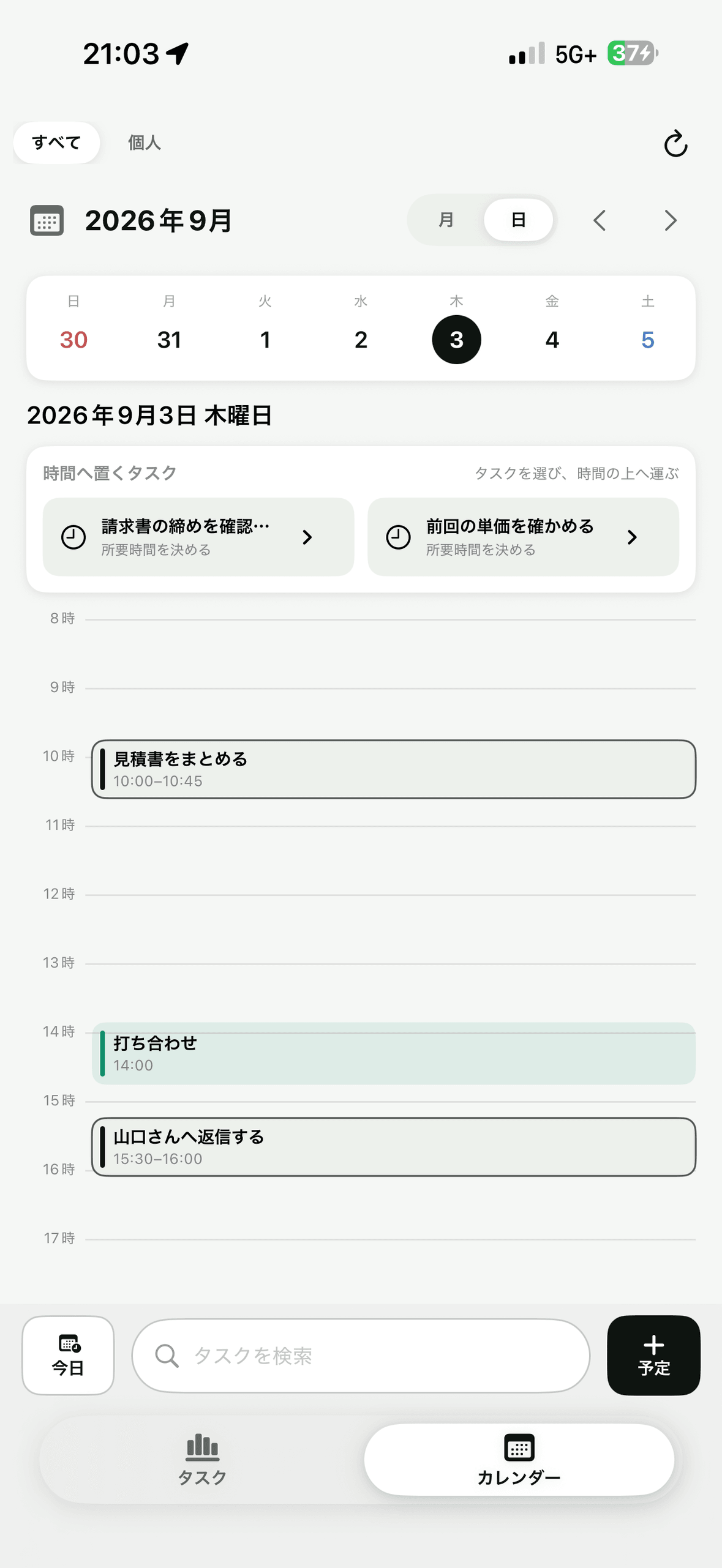
In month view, events and your tasks' start and due dates sit on the same days. In day view, the events you can't move and the work you can place share one timeline. You can see exactly which hours are free.
Events are added and edited here too — location, alerts, repeat, availability, all the same fields as Apple Calendar. They're still saved in Apple Calendar.
Memos
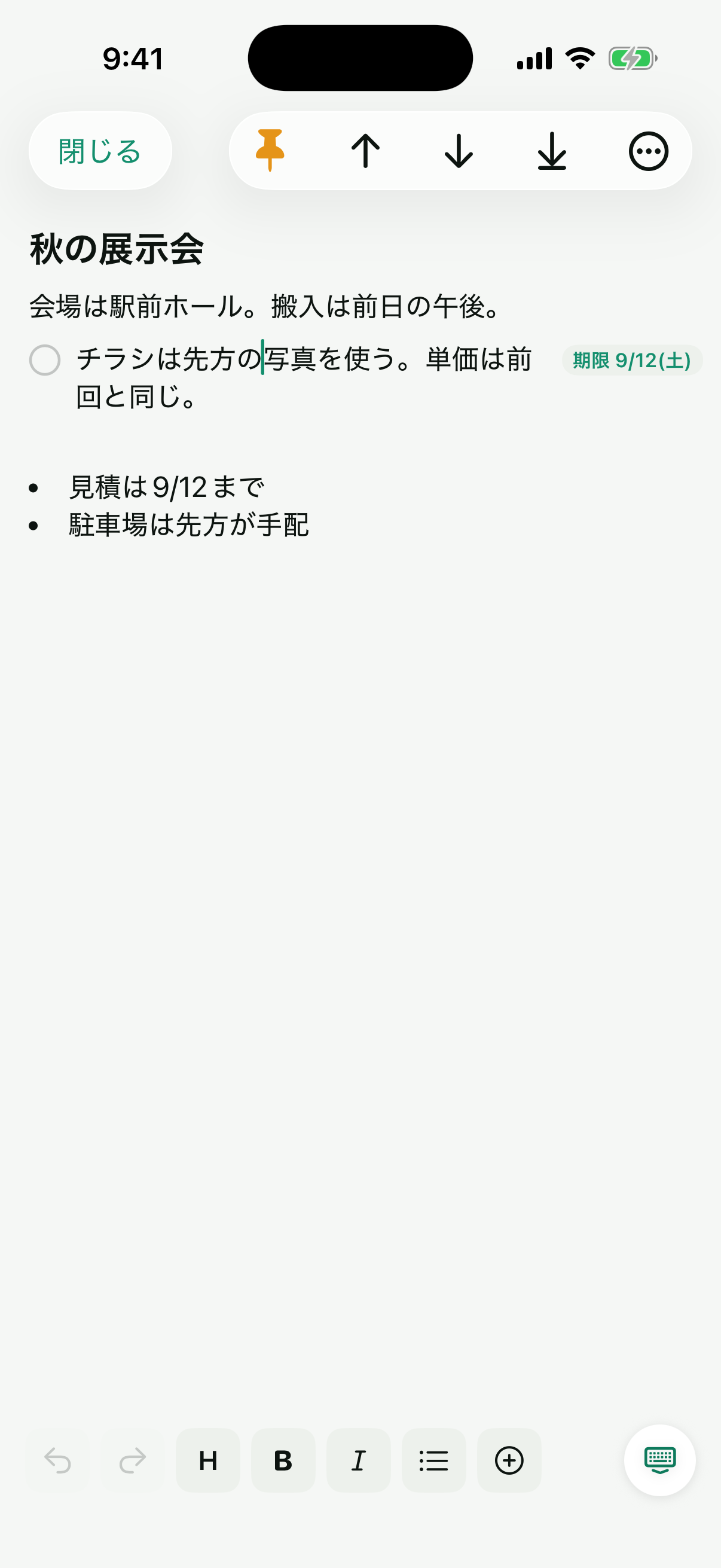
Scribbles or proper documents — headings and bullet lists, with photos, video, PDFs, recordings, handwriting and scans placed right in the text. Text in photos and scans is recognized on the device and becomes searchable.
The things to do live in the body lines themselves. Give a line a start or due date and that single line becomes an Apple Reminders task, appearing on the board and in the calendar. Check it off and the task is done too. The text and attachments stay in the memo.
Press and hold a line and choose "Make This a Task", or start the line with "/task". The sentence is never removed — a circle appears at the head of the line and the date at its end. Tap the circle to complete it. Tap the date to change the start date, due date, parent task or project.
On the board and in the calendar, tasks born from a memo line carry a memo mark, and tapping the bar opens the memo at that very line.
A memo's text and attachments are stored in PatTask's own iCloud, not in Apple Reminders. Only the dated line's text and its dates are written to Reminders. Deleted memos stay in the Trash for 30 days. Export as plain text, Markdown, PDF, TextBundle or a ZIP with attachments.
Projects
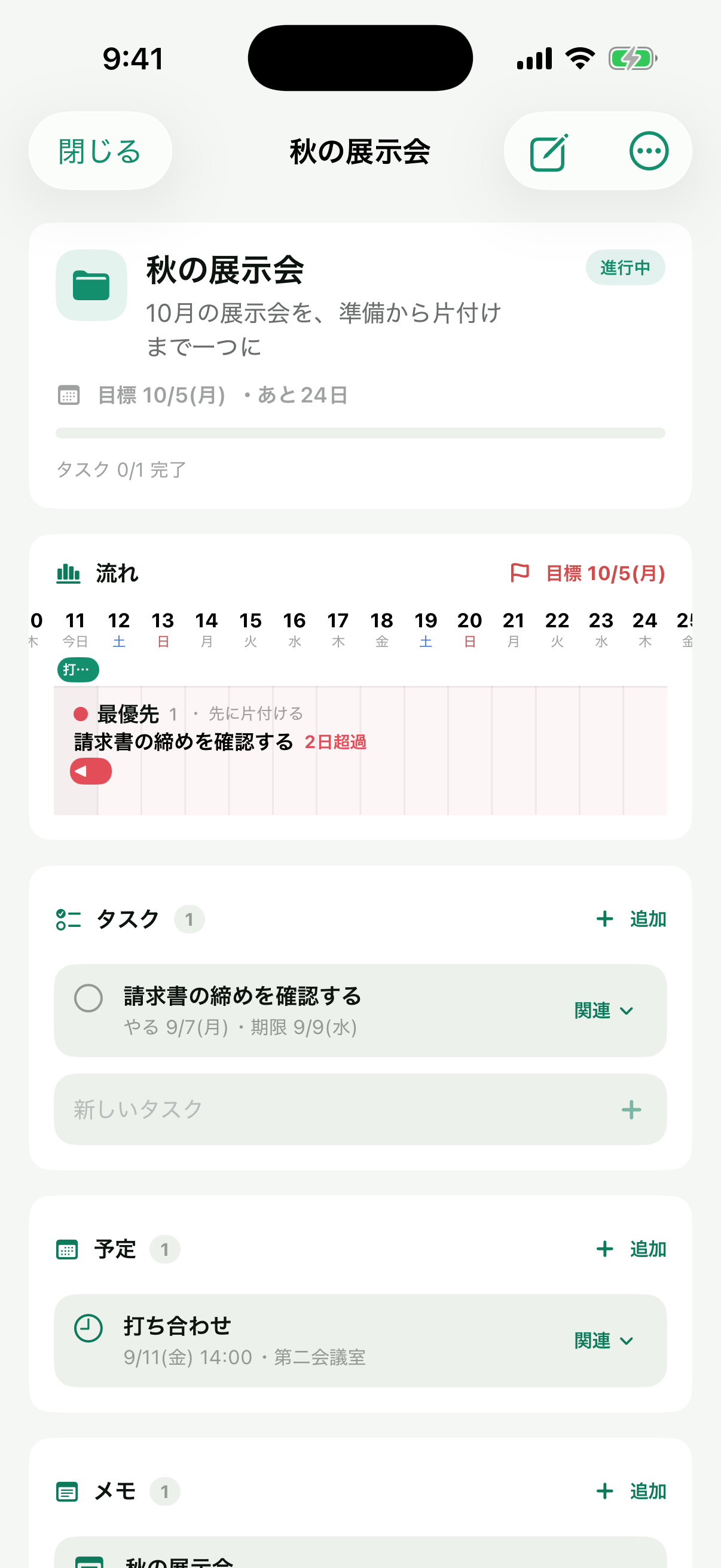
Bookings, packing, documents for a trip — tasks, memos and events gathered into one plan. The same shape works for a piece of work or a course of study. Gathered up, each task, memo and event still works from its usual screen.
Set a name, a purpose, a period and a target date, then add tasks, events and memos with a role: related, deliverable, material, milestone. The Flow section lays the project's tasks and events out on the same Gantt view as the board, with a flag on the target date.
The task composer and the event editor both carry a Project chip, so you can file something as you make it.
Deleting a project doesn't delete the tasks, events or memos linked to it. Open it from "More" in the bottom bar → Projects.
How it relates to Apple Reminders
It works on your Apple Reminders tasks directly. Edit, complete or delete a task in PatTask and the same happens in Apple Reminders.
PatTask can notify you as well. Tasks, work blocks and calendar events can each be turned on or off. Tapping a notification opens that place. Apple Reminders' own notifications are left alone.
Delete PatTask and nothing in Apple Reminders is lost.
Only what Apple Reminders can't: in-progress and on-hold marks, hold reasons and follow-up dates, subtask relationships, related events, work blocks, updates, photos and files attached to tasks and updates, focus records, urgent alarms, launcher shortcuts, memos with their attachments and organization, and projects.
No servers of our own, no sign-up, no advertising, no behavioral analytics.
Price
Everything is unlocked for 14 days from download. After that, adding and changing tasks, events, memos and projects stops. Reading what you have, and going back to Apple Reminders, both carry on working.
To keep using it, there's a launch price of ¥600. One payment, no monthly fee. Pay once and it's yours. After the launch period it becomes ¥1,000.
These are App Store prices; the amount varies by region. Change devices and “Restore Purchase” carries it over, as long as it's the same Apple Account.
In development
These are planned for future updates to PatTask.
We hope you'll look forward to them.
Not the iPhone screen made larger. The list, the board and the details all at once, with the keyboard and dragging to move both priority and dates. Open a subtask and the parent and the board stay put while you edit on the right.
“Up next” on your Home Screen and Lock Screen, showing tasks due soon as the same bars you see on the board. On the Lock Screen: circular, rectangular or inline.
See the next single thing on your wrist and start focusing right there. Without opening the board, you still know what to do now.
FAQ
Yes. PatTask is in English and Japanese and follows your device's language, so setting your device to English puts the whole app in English. Version 1.1 or later.
No. PatTask only reads and writes the reminders you've allowed it to. Deleting a task, or deleting the app, follows Apple Reminders — nothing is quietly removed.
Yes. As long as Apple Reminders has synced to your device, viewing and editing tasks and the focus timer all keep working. Attachments already on the device open too; iCloud sync retries once you're back online.
No. Without it you can still view and edit tasks and use focus. Allow it and you get events on the board, related events, and work blocks on the timeline.
Repeats go as far as Apple Reminders' own rules — a monthly date, the nth weekday, a yearly month. “Urgent” is PatTask's own: at the due time an alarm sounds on that device, even on silent. It needs iOS 26 or later.
No. A memo's text and attachments are stored in PatTask's own iCloud. Only a memo you've given a date becomes an Apple Reminders task, holding just its title and dates.
The tasks themselves — title, notes, dates, priority, completion — stay in Apple Reminders. What PatTask holds on its own is deleted with the app, or from Settings.
14 days from the day you first installed it. It's tied to your Apple Account, so deleting and reinstalling doesn't start it over.
No. With the same Apple Account, “Restore Purchase” on the purchase screen or in Settings carries it over. There's no monthly fee.