PATTASK GUIDE — 2026.09.09
PatTask
How to use
PatTask is an iPhone and iPad app that works with your Apple Reminders tasks on a board of priority lanes and dates. The tasks themselves stay in Apple Reminders, read and written directly by PatTask. Memos and projects are stored in PatTask's own iCloud.
The first minute
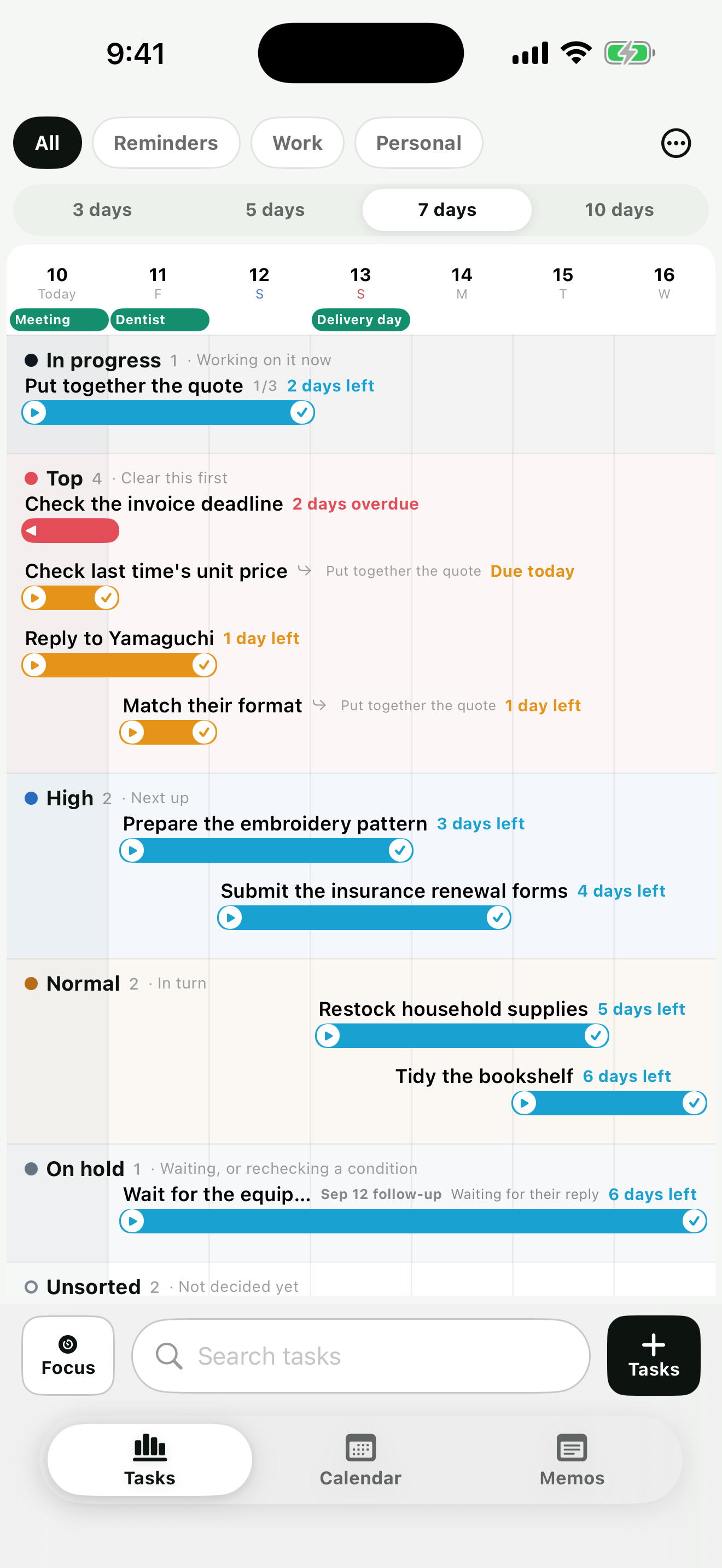
A task is a bar running from the day you'll start it to the day it's due. A task with no dates sits in Unsorted as a dashed bar. Press a dashed bar and carry it onto a date, and that day becomes its start date.
- The middle of the bar, dragged sideways: moves start and due together
- Either end, dragged sideways: changes the start or due date on its own
- Up and down: changes the priority lane
While dragging, the date you'll land on appears above the bar. The In progress lane sits above Top priority, because what you've started comes before what matters most.
The “…” at the top right opens Task list, Launcher, Notifications and Settings. Everywhere this guide says “Settings”, that is where to open it.
1. What to allow first
Apple Reminders
Required to show, add and edit tasks. Without it, PatTask's task screen can't be used.
Calendar
Optional. Allowing it gives you events on the dates and related events. Tasks are never copied into events.
Notifications
Optional. Used when PatTask notifies you about tasks, work blocks and calendar events, and when a focus session or break ends. Apple Reminders' notifications and the in-app timer work without it.
2. Decide whether to turn notifications on
On first launch you are asked once. If both PatTask's and Apple Reminders' notifications are on, the same task alerts you twice. You can change this any time under “PatTask notifications” in Settings, where tasks, work blocks and calendar events are each switched separately.
3. Adding a task
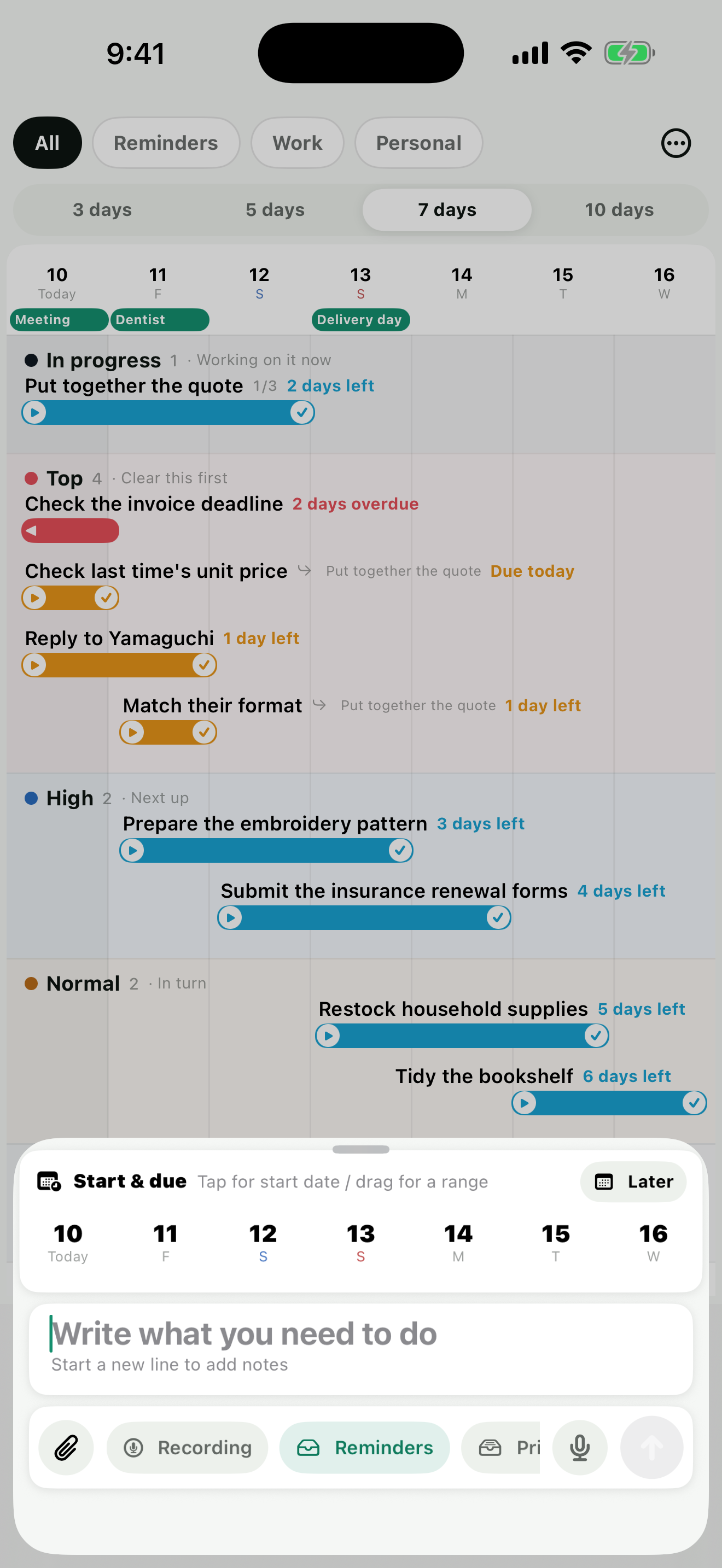
- Tap “+ Task” at the bottom right of the task screen.
- Type into the field. The first line is the task name; anything after a line break becomes notes.
- Tap a date above once to set the start date, another to set the due date.
- If you need them, choose priority, list, notification, urgent, repeat, location, URL and attachments. Repeat rules go as far as a monthly date or the nth weekday under “Build your own…”.
- Tap the arrow at the right of the field to add it.
Dates from what you write
Words such as “tomorrow” or “next week” in what you type set the date. This currently understands Japanese wording; the English equivalents are being added with the English version.
Adding by voice
- The microphone in the field: to the left of the arrow on the add screen. It listens for as long as you hold it, and the text grows as you speak.
Microphone and speech recognition permission are required. Without them, everything except voice still works.
Recording your voice
To keep the audio itself, tap “Record” among the buttons. Tap once to start, again to stop, and it's attached to that task. Up to five minutes each.
“Dictate” (the microphone left of the arrow) puts what you say into the field as text. “Record” keeps your voice as it was. The transcript doesn't go into the field; it's attached to that recording. Press and hold the attachment and choose “View transcript” to read it. The audio is handled like a photo or file: saved on your device, then synced to PatTask's own iCloud.
4. Moving tasks on the board
- Up and down: moves between Top, High, Normal, On hold and Unsorted.
- Left and right: changes the start and due dates, by the bar or from the date controls.
- In progress: what you're working on now. A separate state from priority, holding three.
- On hold: keeps a reason and a follow-up date, without changing the start or due dates.
The number on a lane is how many tasks are in it. You can move a task into an empty lane. The 3, 5, 7 and 10-day buttons change how far ahead you see.
4-2. The list and search
The board shows only the window you've chosen, 3 to 10 days. To see beyond it, open “…” → “Task list”, where everything is listed: overdue first, then by date, then those with no start date.
“Search tasks” at the very bottom filters by task name and notes. The filter applies to the list too, and works together with the list chips above.
To reload your tasks, pull the board down and release.
5. Editing a task
Tap a task to see, on one screen: the short date row, title and notes, priority lane, list, notification, urgent, repeat, location, URL, subtasks, updates, related events and attachments. Changes are saved to Apple Reminders as you make them.
Notifications can be set from on-time up to a week before, the same choices as Apple Reminders' early reminders. “Urgent” sounds an alarm on this device at the due time, even on silent. It becomes available once the due date has a time, and the button shows the day and time it will sound (iOS 26 or later).
6. Breaking work into subtasks
Add a line under “Subtasks” in a task's details. Each is created as an Apple Reminders task in the same list as its parent, and can have its own start date, due date and priority.
On the board, subtasks line up beneath their parent with the parent's name on the row. The parent row shows how many are done out of the total. Move one to a different lane and it sits apart, still carrying the parent's name.
These don't map onto Apple Reminders' own subtasks, so they appear there as ordinary tasks. “Detach” only breaks the parent–child link; the task is not deleted. Deleting a parent leaves its subtasks as independent tasks.
7. Adding updates
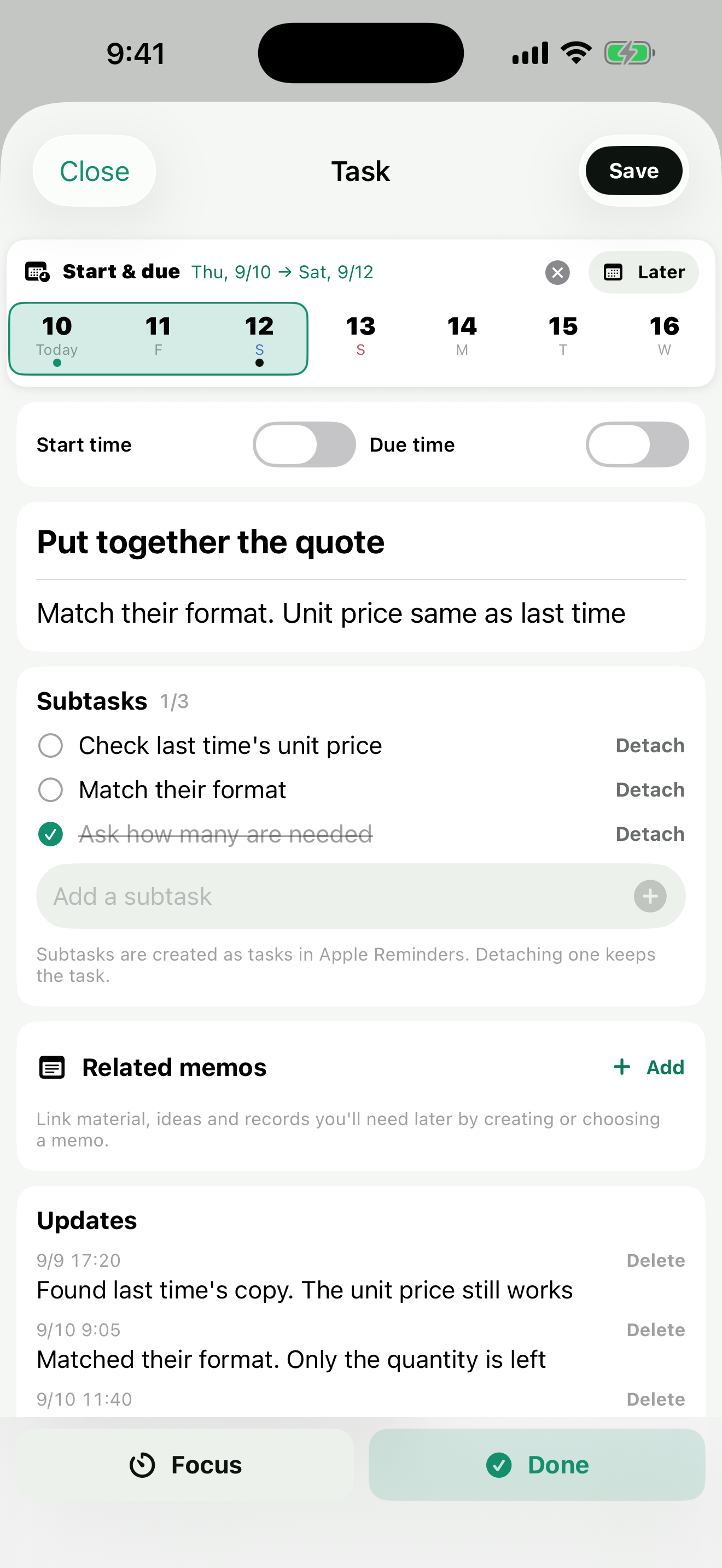
Write a line in the “Updates” field of a task's details and it's stacked with the date. You don't have to reopen the notes to edit them. Progress, a record of a call, something you thought of later — just add it.
From the clip in the field you can choose photos and files to keep with that entry. “Record audio” from the clip attaches a recording made on the spot. The microphone beside it is voice input, turning what you say into text there and then. They stack below the updates; tap one to open it full screen.
Updates are stored on PatTask's side and are not written into the Apple Reminders task. You can see the same content on your other devices.
8. Focusing
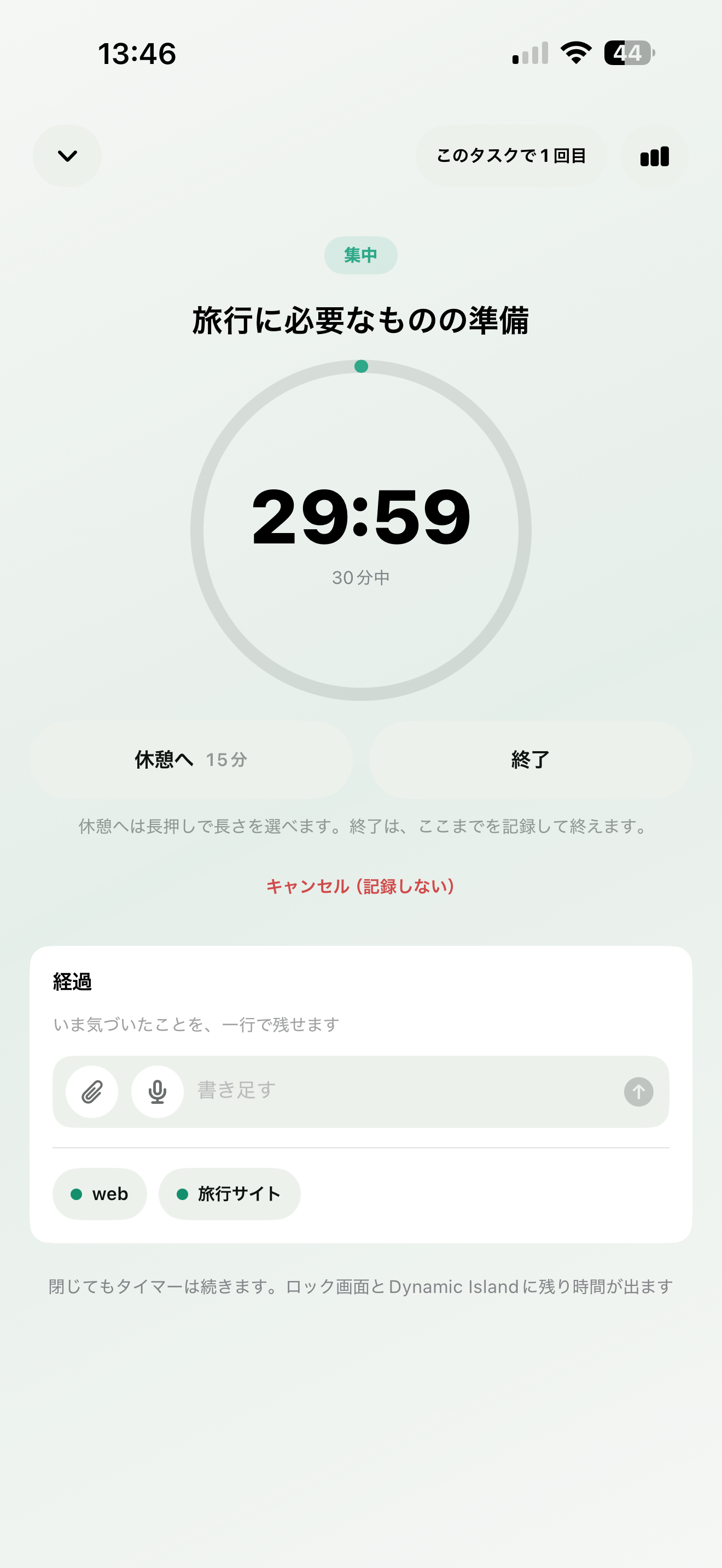
- Tap the play button at the left end of a bar, or “Focus” at the bottom of the screen.
- Choose a task. In progress is listed at the top, others below, in the same order as the board. How many times you've focused on each is shown alongside.
- Tap a length — 10, 15, 20, 25, 30, 45 or 60 minutes — and it starts right away.
The bar at the top says something like “Session 3 on this task · last time 25 min”. Below the circle sits everything that task needs at hand: subtasks (tap to complete), updates (the last two, and a field to add one), related events, the URL and launcher destinations. You can work from here without leaving the session.
A break just sets the focus aside
You can take a break at any point. The remaining focus time is held, and when the break ends it returns there automatically. Take ten minutes in the middle of a sixty-minute session and it's still one sixty-minute session.
- Take a break: uses the length in Settings (10 minutes to start with). Press and hold to choose 5, 10, 15 or 30 minutes, or open-ended.
- During a break: “+5”, “+10” and “+30 min” extend it. Press +10 during a five-minute break and it becomes fifteen. Pressed during an open-ended break, it starts counting from then. “Resume” returns early.
- End: records the focus so far and finishes, even with time left.
- Cancel: stops without recording this session.
A chime sounds when you complete the time and when a break ends, even on silent. When the app is closed, a notification tells you instead. The time remaining is always on the Lock Screen and Dynamic Island.
When it's over
“Keep going” runs the same task once more; “That's it for today” closes. “Mark the task as done” completes it in Apple Reminders too, and looks different from the other buttons.
Records
The graph at the right of the top bar opens your focus records: totals for today, this week and all time, by task, and a day-by-day list. Completed and ended sessions are kept; cancelled ones are not. Records reach your other devices through iCloud, and “Delete records” clears them all.
Started from a task's details, the task is already decided, so no list appears. In progress holds three.
8-2. Launcher
Open it from “…” → “Launcher” on the task screen. Register the dashboards, suppliers and chats you open often with a name and a color, and reach them in one tap. The name is optional (the destination's own name is used instead). Press and hold to remove one. You can also register from the URL field in a task's details.
Destinations are stored in your own iCloud and reach your other devices with the same Apple Account. Nothing is written into Apple Reminders.
9. Calendar and related events
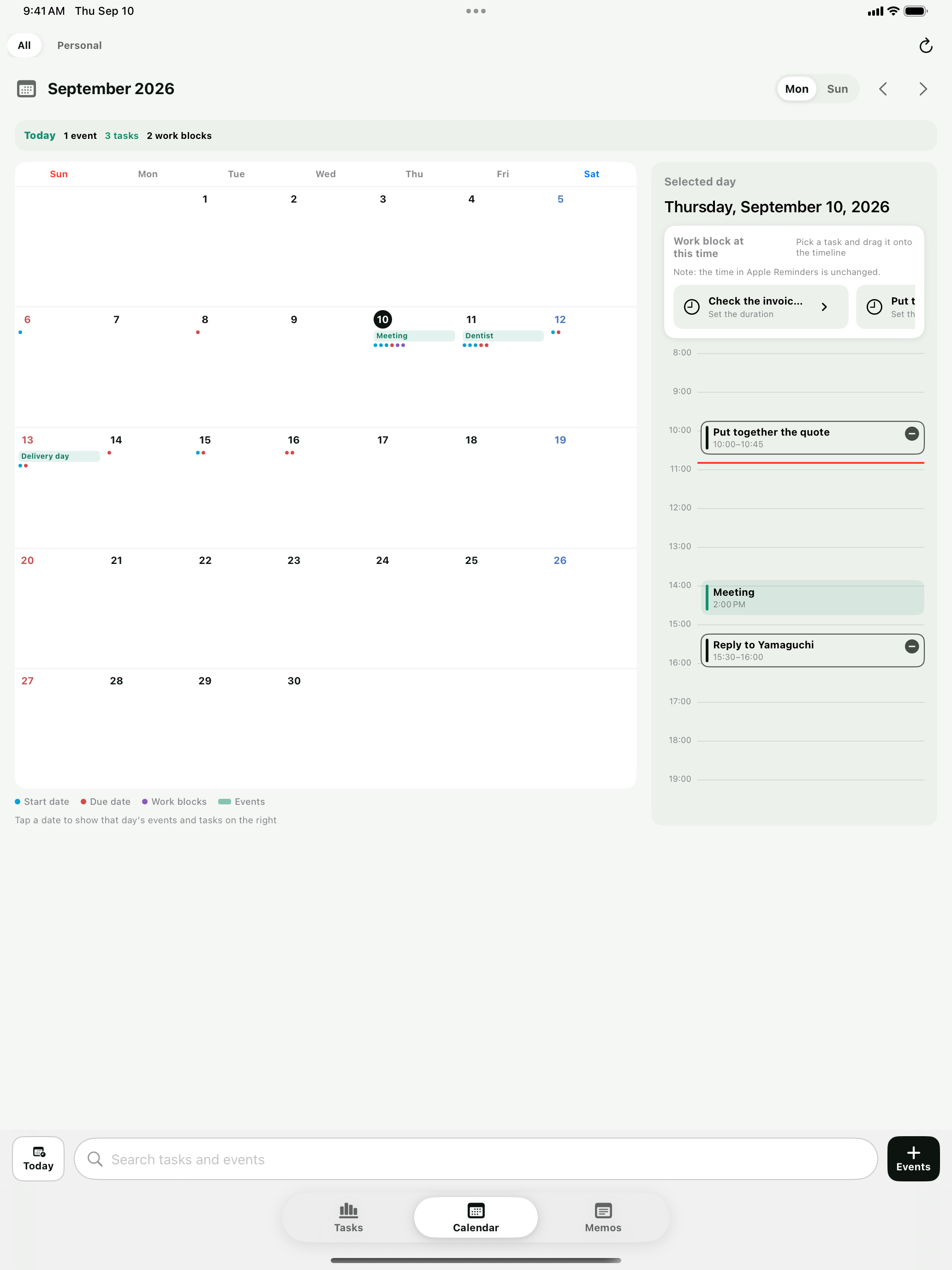
The calendar shows events and tasks on the same dates. In day view, tasks with a set start or due time appear at that position on the timeline. Tasks without a time are listed under “Work block at this time”, so you can carry one onto the timeline and make it a work block (nearest start dates and due dates first).
Which calendars appear is chosen one by one under “Calendars to show” in Settings — holidays, work calendars, anything you'd rather keep off the board. Travel time, invitations and file attachments are set in Apple Calendar. Events in read-only calendars, such as national holidays, are shown but not editable.
10. Attaching photos and files
Use the clip on the add screen, or the attachments section in a task's details, to choose photos, the camera or files. Up to 40 MB each.
Tap an attachment and it opens full screen. Pinch to zoom, swipe sideways to move to the next one. PDFs read as they are.
Attachments are saved on your device first, then synced to PatTask's own iCloud under the same Apple Account. Saved attachments open with no connection. Anything that didn't get through is retried when you reopen the app, and “Sync attachments now” in Settings does it on demand.
Attachments are not written into Apple Reminders. Delete them one at a time from a task's details, or all at once with “Delete all PatTask data” in Settings. Neither deletes the task itself.
11. Memos
Open the "Memos" tab at the bottom. "Write" opens an empty memo ready to type; "Import" brings in a document scan, photos and videos, a recording, a file or handwriting; "Search memos" looks through the text and the text recognized in attachments.
Writing
The first line is the title. Write plainly, or use the formatting bar below the text for headings, bold, italic, bullets, quotes, tables and code. "+" places photos, video, PDFs, recordings, handwriting, scans and links to other memos inside the text. Everything is saved as you go, and you can return to an earlier version from History.
Making a body line a task
Press and hold a line (right-click on Mac) and "Make This a Task" appears. The sentence is never removed. A circle appears at the head of the line, and the date screen opens next. It doesn't appear on table rows, code fences, or lines with only an attachment.
Once a date is set, that line becomes an Apple Reminders task and the date appears at the end of the line. Tap the circle to complete it — the text dims and the task is completed too.
Starting a line with /task (any case; a full-width slash works too) and pressing return does the same. Write a date after it, as in /task Send the quote by 9/14, and the date is set right away.
The date screen also has a "Link" section: choose a parent task to make this line's task a subtask, or a project to file it there. Both are linked when you save with a date. Priority, notes, subtasks and the log are behind "Task Details" on the same screen.
To change it later, tap the date at the end of the line, or press and hold the line and choose "This Line's Task". To stop it being a task, use "Remove Task" at the bottom of that screen (or from the same press-and-hold menu). The circle and the date disappear and the line becomes ordinary text again — the sentence stays.
On the board and in the calendar, tasks born from a memo line carry a memo mark, and tapping the bar opens the memo at that very line. The task details also carry a "Task from a memo line" card that takes you back to the memo.
A memo as a whole is never given a date. A memo is material and record; the things to do live in its lines. Only the dated line's text and its dates are written to Apple Reminders — never the body or the attachments.
The Check shelf
Below the text there is a short shelf of check items. Items you add by hand live there and become tasks the same way once dated. Items made from a body line stay in the text and are not repeated on the shelf.
Linking to tasks and events
Link from "Related tasks" and "Related events" under Organize in the bottom bar. You can also link from the memo section in a task's details, the add screen, and the memo button in the event editor.
Organizing
Categories, folders and tags. Filter from "Library view" in the list — create a memo while a filter is on and it inherits that membership. Pin a memo to the top with the 📌 in the top bar of the editor.
Attachments and text recognition
Text in photos, scans and handwriting is recognized on the device and becomes searchable. Recordings get a transcript. Up to 150 MB each. By default, videos are only sent and fetched over Wi-Fi ("Sync over" in Settings).
Trash and history
Swipe right on a memo in the list, or press and hold, to delete it. It stays in the Trash for 30 days and can be restored — tasks made from its dated lines are recreated on restore. After a large rewrite or a conflict with another device, a version is kept in "History" under "…".
Export and import
From "More" → "Settings" → "Export & import memos". Export as plain text, Markdown, PDF, TextBundle or a ZIP with attachments. Dates set on lines, and their tasks, travel with them.
A memo's text and attachments are stored in PatTask's own iCloud and are not written into Apple Reminders. They can also be opened from the device's search (Spotlight).
12. Projects
Open "More" in the bottom bar → "Projects". Create one with a name, a purpose, a period, a target date and a color. You can choose tasks, events and memos to include as you create it.
Each is added with a role: related, deliverable, material or milestone. You can also set membership from the "Project" section in a task's details, and from the Project chip in the task composer and the event editor.
The Flow section lays the project's tasks and events out on the same Gantt view as the board, with a flag on the target date. Swipe the date strip sideways to look further ahead.
Deleting a project does not delete the tasks, events or memos linked to it. Nor does removing a membership. A deleted project stays in the Trash for 30 days.
13. Settings and data
Open “…” → “Settings”. From the top:
- PatTask notifications: tasks, work blocks and calendar events, each switched separately. For work blocks you can also choose how many minutes ahead. While you're receiving them, how many are scheduled is shown for each of the three.
- Data & sync: where tasks are stored, the state of iCloud for attachments, how many attachments are on the device and their size, “Sync attachments now”, “Sync over” (Wi-Fi only, per-file limit on cellular, videos on Wi-Fi only, respect Low Data Mode) and “Export & import memos”.
- Bottom tabs: show, hide and reorder Calendar and Memos. Tasks can't be hidden.
- Access: the state of Reminders, Calendar and notification permissions. Anything not yet allowed can be allowed from here.
- Task screen: which screen opens at launch, how many days are shown at first (3, 5, 7 or 10), whether related events appear, and the list, priority lane and notification for new tasks.
- Appearance & calendar: appearance (match device, light or dark) and the first day of the week.
- Calendars to show: each calendar on the device, on or off. Events from ones you turn off appear on neither the board nor the calendar. The events themselves are not deleted.
- Focus: the default length, break length (10 minutes to start with), today's records, showing it on the Lock Screen and Dynamic Island, and the chime at the end.
- Purchase: current state, what the purchase covers, and Restore Purchase.
- Privacy & data: delete all PatTask data.
- Support: how to use, contact us, privacy policy, about PatTask.
“Delete all PatTask data” deletes in-progress and on-hold marks, hold reasons and follow-up dates, subtask relationships, related events, work blocks, updates, focus records, attachments, urgent alarms, launcher shortcuts, memos and their attachments, and projects. Apple Reminders tasks — title, notes, dates, priority, completion — are not deleted.
Because this cannot be undone, confirmation has two stages, and the second cannot be pressed until twenty seconds have passed. If the attachments in iCloud cannot be deleted, nothing is deleted and you are told so. If it stops partway, what was deleted is named explicitly.
Date-and-time notifications are scheduled nearest first. More distant ones are scheduled automatically as their day approaches.
14. The free trial and purchasing
The first 14 days from installation are a free trial with no restrictions. When it ends, adding and changing tasks, events, memos and projects stops. Reading what you have, and stopping a focus session, both carry on.
To keep using it, there is a one-time purchase — not a subscription. Check your state under “Purchase” in Settings, and use “Restore Purchase” if you change devices or reinstall.
The trial is tied to your Apple Account, so deleting and reinstalling doesn't start it over. When it ends, nothing you made before then is lost.